7) CATEGORY SECTION
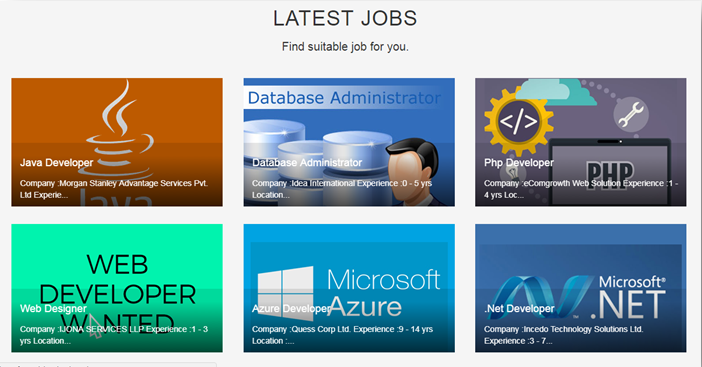
The theme allows you to display latest jobs using category section. To configure the category section you’ll have to posts under a category and later configure it to display it from the customizer.
Create Post Under Category
• Login to your WordPress Dashboard.
• Go to Dashboard > Post > Add New.
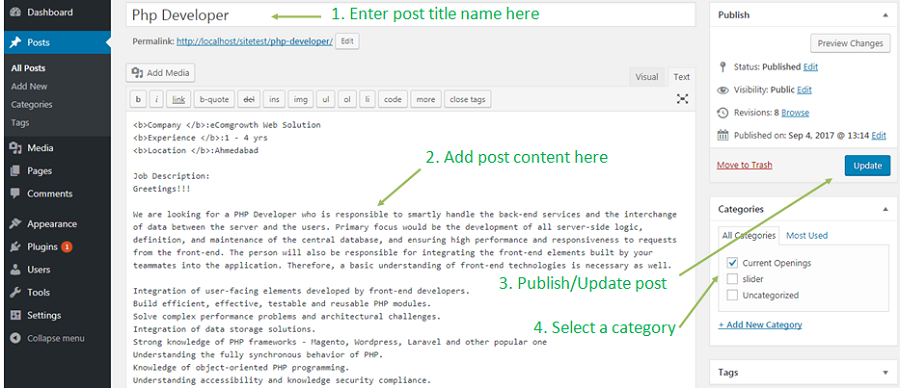
• Enter the name for the Postname in title field.
• Enter the description about the job in the content area.
• Set the featured image for the job.
• Choose a category or create new category if not exist already.
• Click on Publish/Update button.
Configure CategorySection
• Login to your WordPress Dashboard.
• Go to Dashboard > Appearance > Customize.
• Go to Home Sections > Categoryl Section.
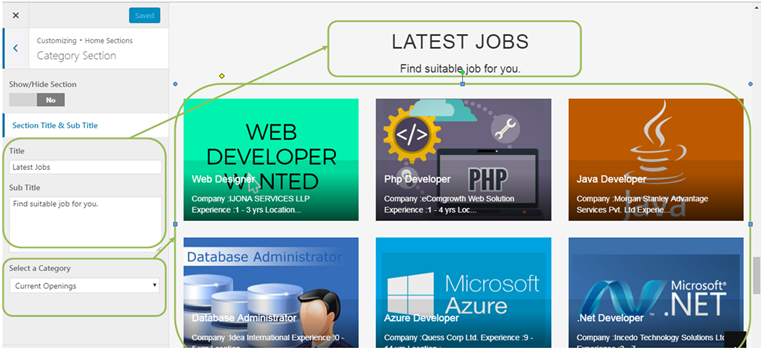
• Set ‘Show/Hide Section’ to ‘No’ if you want to Hide category section in your home page or want to Enable set the option to ‘Yes’.
• Set the Category Section title under ‘Title’ text field.
• Set the Category Section sub-title under ‘Sub Title’ textarea field.
• Select the Category drop-down page list under ‘Select a Category’.
• Once Done, Click on ‘Save & Publish’ button.
8) CLIENTS LOGO SECTION
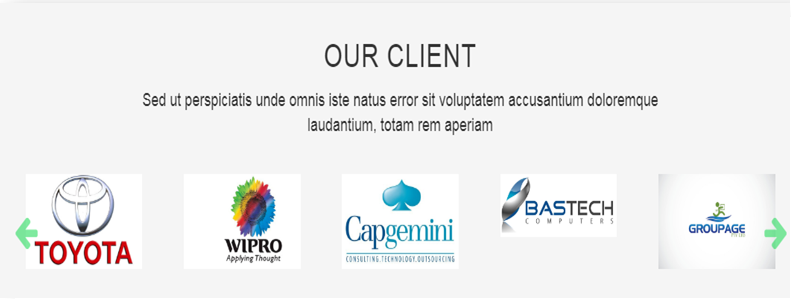
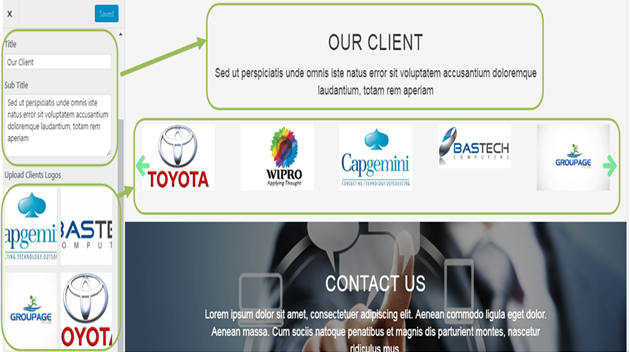
The theme allows you to display unlimited client logos under the Client Logo Section. To configure the Client Logo Section follow these steps:
• Login to your WordPress Dashboard.
• Go to Dashboard > Appearance > Customize.
• Go to Home Sections > Client Logo Section.
• Set ‘Show/Hide Section’ to ‘No’ if you want to Hide clients logo section in your home page or want to Enable set the option to ‘Yes’.
• Set the Client Logo Section title under ‘Title’ text field.
• Set the Client Logo Section sub-title under ‘Sub Title’ textarea field.
• Click on Add/Edit Gallery button and select the multiple client logo images from the media library. These Logos will be displayed on client logo section.
• Once Done, Click on ‘Save & Publish’ button.
9) CALL TO ACTION SECTION
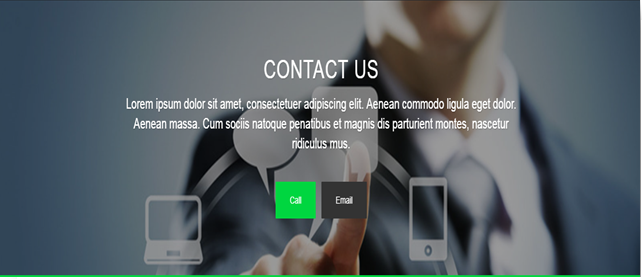
Configure the Call to Action Section following these steps:
• Login to your WordPress Dashboard.
• Go to Dashboard > Appearance > Customize.
• Go to Home Sections > Call To Action Section.
• Set ‘Show/Hide Section’ to ‘No’ if you want to Hide call to action section in your home page or want to Enable set the option to ‘Yes’.
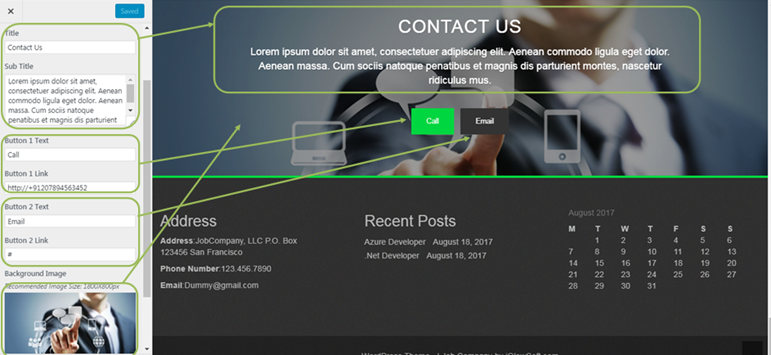
• Set the Call to Action Section title under ‘Title’ text field.
• Set the Call to Action Section sub-title under ‘Sub Title’ textarea field.
• Set the button 1 text in ‘Button 1 Text’ textfield.
• Set the url for button 1 in ‘Button 1 Link’ textfield.
• Set the button 2 text in ‘Button 2 Text’ textfield.
• Set the url for button 2 in ‘Button 2 Link’ textfield.
• Set the background image for the Call to Action section by clicking on ‘Upload Image’ button under ‘Background Image’ and choosing the image from the media library.
• Once Done, Click on ‘Save & Publish’ button.
FOOTER SETUP
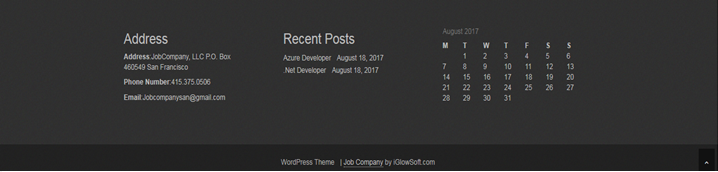
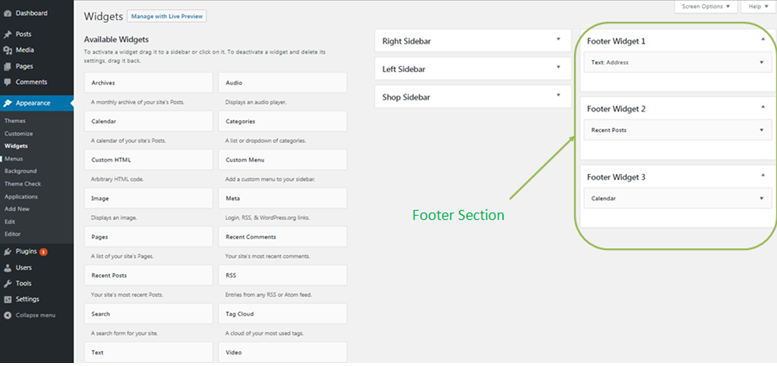
The theme allows you to display 3 footer widget in the Footer Area. To Set these footer widgets follow these steps:
• Login to your WordPress Dashboard.
• Go to Dashboard > Appearance > Widgets.
• Select your choice to Footer One, Footer Two, Footer Three widget
• Configure the widget contents and settings.
• Once Done, Click on ‘Save’ button.